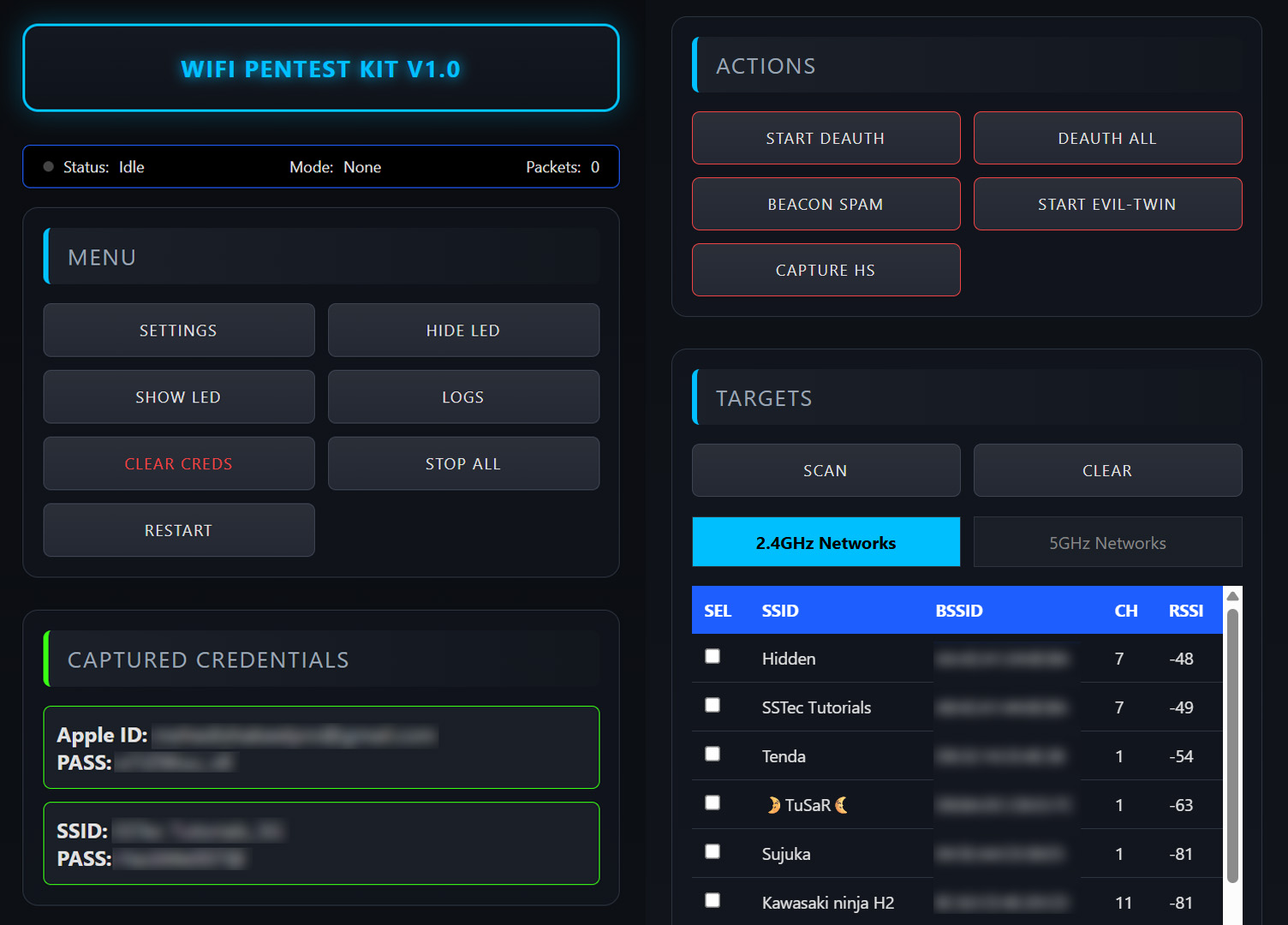
Browser-controlled wireless testing on the BW16.
A standalone wireless security audit toolkit running directly on the dual-band RTL8720DN board. Scan access points across 2.4 GHz and 5 GHz, evaluate deauthentication defenses, demonstrate captive portal risks, and capture handshakes from any phone or computer browser.
Dual-band wireless testing from an embedded browser interface.
The toolkit runs self-contained on the BW16 microcontroller. Connect directly to its local access point from any smartphone, tablet, or computer to execute authorized wireless tests.
Dual-Band Network Discovery
Scans 2.4 GHz channels 1 through 14 and 5 GHz U-NII bands. Identifies access point SSIDs, BSSID hardware addresses, RSSI signal levels, channel bandwidth, and encryption standards (WPA2, WPA3, WEP, Open).
| Parameter | Detail | Edition |
|---|---|---|
| Band Selection | 2.4 GHz / 5 GHz / Both |
Trial & Pro |
| Channel Scope | CH 1-14, CH 36-165 |
Trial & Pro |
| Signal Telemetry | RSSI dBm + Channel + BSSID |
Trial & Pro |
Use the WebUI checkbox filters to isolate specific targets by band or signal threshold before initializing an audit.
Deauthentication Resilience Audit
Transmits IEEE 802.11 management frames (deauthentication subtype) to test client reconnection handling, 802.11w Protected Management Frames (PMF) enforcement, and wireless intrusion detection system (WIDS) alerts.
| Option | Description | Edition |
|---|---|---|
| Target Mode | Broadcast (FF:FF:FF:FF:FF:FF) / Unicast |
Trial & Pro |
| Packet Count | Configurable burst duration |
Trial & Pro |
| Protected Frames | PMF validation check |
Trial & Pro |
Notice: Test only on networks you own or where you have written permission to assess reconnection behavior.
WPA/WPA2 4-Way Handshake Capture
Captures EAPOL authentication frames exchanged between authenticating clients and access points. Validates key integrity and allows researchers to assess passphrase complexity through offline authorized dictionary audits.
| Feature | Specification | Edition |
|---|---|---|
| Frame Filter | EAPOL Message 1, 2, 3, 4 |
Trial & Pro |
| Export Format | PCAP / Hash output via WebUI |
Trial & Pro |
| Status Feedback | Visual capture confirmation |
Trial & Pro |
Evil-Twin & Captive Portal Simulation
Deploys a duplicate access point matching target network credentials and launches an internal HTTP captive portal. Used in security awareness training to demonstrate the risks of rogue access points and credential harvesting.
| Capability | Description | Edition |
|---|---|---|
| AP Cloning | Duplicate SSID & Channel cloning |
Pro Edition |
| Captive Portal | Dedicated HTTP redirect at 8.8.8.8 |
Pro Edition |
| Credential Audit | Real-time password capture log |
Pro Edition |
Evil-Twin simulation is available exclusively in the Pro firmware edition.
Beacon Frame Broadcasting
Generates custom 802.11 beacon frames to evaluate device behavior in congested RF spaces. Supports predefined wordlists, randomized SSIDs, or targeted cloned networks for density testing.
| Mode | Behavior | Edition |
|---|---|---|
| Custom SSID List | Broadcasts user-provided network names |
Trial & Pro |
| Randomized Flood | Generates dynamic SSIDs on chosen channels |
Trial & Pro |
| Transmitter Rate | Adjustable beacon interval timing |
Trial & Pro |
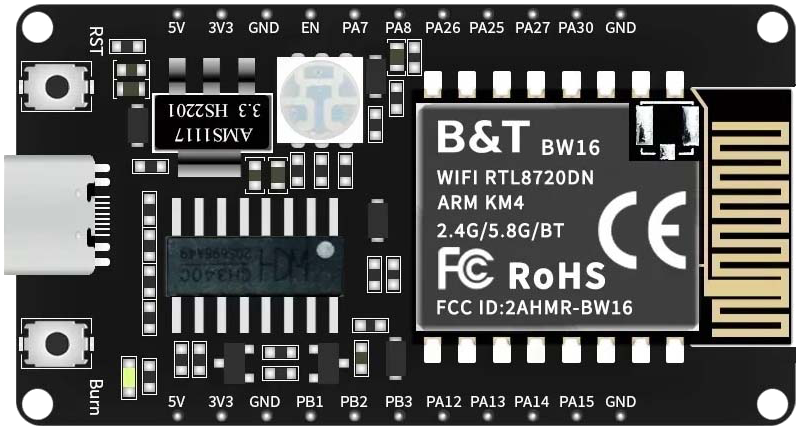
Hardware requirements and board pinout.
The kit is designed for the BW16 module, an affordable RTL8720DN development board produced by B&T / Ai-Thinker.
Required Components
Assemble these basic components to construct your portable lab:
BW16 Development Board (RTL8720DN)
Dual-band WiFi development board with integrated PCB trace antenna and IPEX connector for external antennas.
Micro-USB Data Cable
Must have data lines connected. Power-only charging cables will fail during firmware flashing.
Computer, Smartphone, or Tablet
Used to flash the board (Windows computer) and connect to the WebUI (any operating system with a modern browser).
Power Bank (Optional)
Provides portable 5V power for testing networks across different field locations without a computer.
Boot Mode & Flash Operation
The BW16 board features two on-board tactile switches: RST (Reset) and Burn (Download Mode).
Entering Flash / Download Mode
To allow the flasher tool to write new firmware over USB, hold the Burn button down while plugging the USB cable into your computer. This grounds the boot pin and prompts the AmebaD bootloader to accept binary flashing over the CH340 / CP2102 serial bridge.
Antenna Considerations
The board comes with a built-in PCB antenna suitable for room-scale audits. For long-distance or directional auditing, move the 0-ohm jumper resistor to enable the IPEX U.FL external antenna socket.
Flashing and installation instructions.
Begin with the free Trial firmware using the automated Windows flasher, or upgrade to Pro via USB, OTA, or Arduino IDE serial activation.
-
01
Download Flasher and Firmware
Download the official flasher utility and Trial binary directly from GitHub releases:
-
02
Connect in Burn Mode
Hold down the physical Burn button on the BW16 board while connecting the USB cable to your PC. Release the button once plugged in.
-
03
Select Port and Flash
Open
WiFi Pentest Kit - Flasher.exe. Select your board's COM port from the dropdown, locate the downloadedWiFi-Pentest-Kit-Trial.binfile, and click Flash. -
04
Reboot and Connect
Once writing reaches 100%, disconnect and reconnect the board. Connect to the new WiFi network
WiFi Pentest Kit Trialwith passwordpentester.
Power Supply Caution: Keep the device firmly plugged in throughout the flashing operation. Disconnecting power while the flash memory is being written can corrupt the boot sector.
-
01
Obtain Pro Firmware
Contact the developer on Telegram to receive the verified Pro firmware binary for your specific BW16 board:
Contact Developer on Telegram -
02
Flash via Windows Tool
Use the same USB flashing workflow as the Trial edition: hold Burn, select your COM port, choose the supplied Pro binary file, and click Flash.
-
03
Access Pro WebUI
Reboot the board. Join
WiFi Pentest Kit(password:pentester) and visithttp://8.8.8.8to access the complete toolkit including Evil-Twin and OTA options.
-
01
Open WebUI OTA Section
If you already have Trial or a previous version running, connect your phone or laptop to the kit's WiFi network and navigate to
http://192.168.1.1. -
02
Upload New Binary
Select the OTA Update page in the WebUI navigation. Select your new Pro firmware binary file and start the update.
-
03
Wait for Automated Reboot
Keep the board powered while the progress bar completes. The device will automatically reboot into the updated firmware.
-
01
Flash Universal Pro Firmware
Download the Universal Pro firmware from GitHub Releases and flash it to the BW16 board using the Windows Flasher.
-
02
Configure Arduino IDE
Open Arduino IDE. Under File > Preferences, add the AmebaD Package URL to Additional Board Manager URLs:
https://raw.githubusercontent.com/Ameba-AIoT/ameba-arduino-d/master/Arduino_package/package_realtek_amebad_index.json -
03
Install Realtek Ameba Package
Open Boards Manager, search for Ameba, and install the package. Set board to BW16 (RTL8720DN) under Tools > Board.
-
04
Activate in Serial Monitor
Open Tools > Serial Monitor (115200 baud). Paste your board-specific key received from the developer and press Enter to activate.
Connecting to the kit in the field.
The device creates its own autonomous wireless network. No external router, mobile hotspot, or internet connection is required.
Default Credentials
Power on the BW16 board and join the device network:
WiFi Pentest Kit
WiFi Pentest Kit Trial
pentester
Mobile Field Tip: If your smartphone does not automatically open the captive portal login screen, temporarily disable Cellular Data in your phone settings to prevent the OS from bypassing local networks without internet access.
Trial vs. Pro edition feature matrix.
The free Trial edition provides essential 2.4/5GHz scanning, beacon broadcasting, and handshake tools. Pro unlocks advanced attack simulations and wireless updates.
| Capability / Feature | Trial Edition (Free) | Pro Edition |
|---|---|---|
| 2.4 GHz Access Point Discovery | ✓ Included | ✓ Included |
| 5 GHz High-Band Scanning | ✓ Included | ✓ Included |
| Deauthentication Resilience Testing | ✓ Included | ✓ Included |
| Beacon Frame Flooding & Spoofing | ✓ Included | ✓ Included |
| WPA / WPA2 Handshake Capture | ✓ Included | ✓ Included |
| Evil-Twin Access Point Simulation | ✕ Not in Trial | ✓ Full Support |
| Customizable Captive Portals | ✕ Not in Trial | ✓ Full Support |
| Over-The-Air (OTA) Firmware Updates | ✕ Not in Trial | ✓ Full Support |
| Direct 8.8.8.8 IP Redirection | ✕ (Uses 192.168.1.1) | ✓ Dedicated Routing |
| Licensing Model | Free GitHub Download | Issued via Developer Telegram |
Common questions & troubleshooting.
Clear answers regarding firmware operation, hardware drivers, and ethical testing standards.
Is this toolkit legal to use?
Does the BW16 module genuinely support 5 GHz networks?
The Windows Flasher cannot find the COM port. What should I check?
Can the WebUI be used on iPhone or Android without installing an app?
http://192.168.1.1 (Trial) or http://8.8.8.8 (Pro).
How can I obtain the Pro edition firmware?
Why is my client disconnecting during deauth testing?
Responsible security research policy
WiFi Pentest Kit is developed exclusively for educational demonstrations, security research, and authorized network audits. Ethical security testing requires verifiable consent: never execute tests against equipment or networks without documented authorization from the network owner.
The author and contributors assume no liability for misuse, service interruptions, or legal repercussions resulting from unauthorized activities.
Read Official Disclaimer on Wiki